If you’ve been exposed to ink, you’ll likely feel mild symptoms like skin staining or slight irritation without serious harm.
If ink gets in your mouth or eyes, you might notice redness, burning, or mild soreness.
Swallowing a small amount can cause nausea or stomach discomfort, while larger amounts might lead to dizziness or vomiting.
Most ink exposures are low risk, but understanding how to care for and when to seek help can keep you safe.
What Are the Symptoms of Ink Poisoning on Skin?
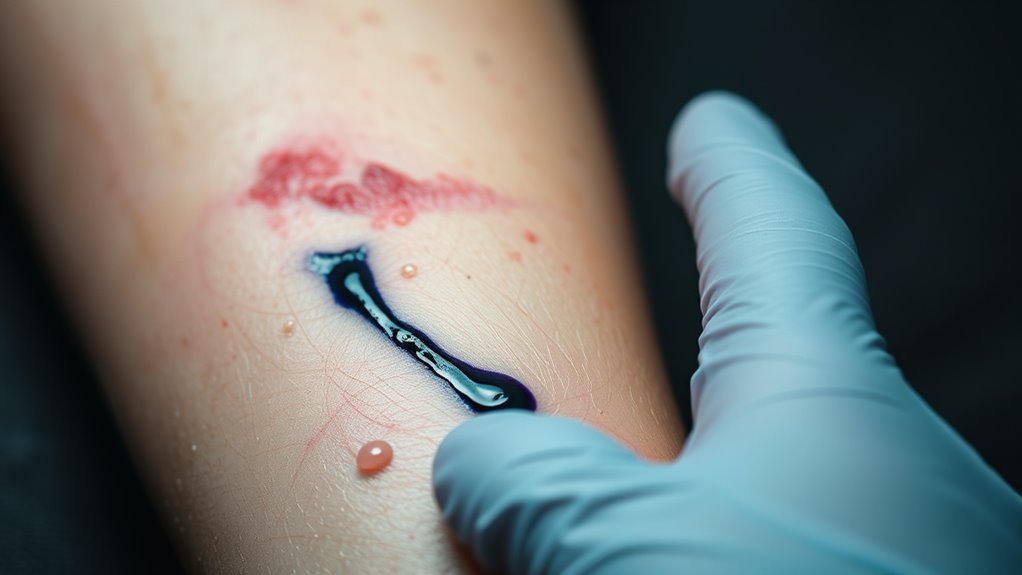
Although ink on your skin might look concerning, it usually only causes temporary staining without any poisoning or lasting harm. When ink touches your skin, it may leave blue, black, or colored marks, but these are just surface stains.
You won’t experience symptoms of ink poisoning from mere skin contact because the toxicity level is generally too low to cause harm. Unlike ingestion or deep wounds, ink on the skin doesn’t lead to pain, swelling, or other warning signs of poisoning.
You should avoid harsh scrubbing or using strong chemical cleaners to remove the ink, as these can irritate or damage your skin. Instead, the stain will fade naturally over time without any medical treatment.
How Ink Poisoning Affects the Mouth and Throat
When ink enters your mouth or throat, it can cause temporary staining and irritation. Ink poisoning in these areas often leads to noticeable symptoms you can’t ignore. You might see white or colored patches on your oral tissues, which can look alarming but usually fade with time.
Ink in your mouth can cause temporary stains and irritation, often showing as white or colored patches that fade.
The irritation can make your mouth and throat feel sore or even give you a mild burning sensation. In some cases, swallowing a larger amount of ink might cause discomfort or nausea focused around your mouth.
Here are common symptoms of ink poisoning affecting your mouth and throat:
- Temporary staining of the tongue, gums, and throat lining
- White or colored patches on mucous membranes
- Soreness or burning sensation causing irritation
- Mild localized discomfort or nausea
Most symptoms resolve with rinsing and basic care, but if irritation sticks around, it’s a good idea to get checked by a doctor.
Common Digestive Symptoms After Swallowing Ink

If you swallow ink, you might feel a bit of stomach discomfort or even some nausea. It’s pretty common to experience these mild symptoms. Sometimes, this irritation can make you want to vomit as your body tries to get rid of the ink. Usually, these symptoms go away on their own and don’t cause any lasting problems. So, while it’s not the most pleasant experience, it generally isn’t something to worry about too much.
Mild Gastrointestinal Irritation
Because swallowing ink can irritate your digestive tract, you might feel nausea, slight stomach discomfort, or queasiness. These mild gastrointestinal irritation symptoms usually appear after ingestion but tend to be temporary and resolve without treatment.
You might notice:
- Mild stomach cramps or discomfort
- A queasy feeling that comes and goes
- Slight nausea without vomiting
- Minor bloating or gas
In most cases, these mild stomach symptoms from ink ingestion don’t require medical attention. Drinking plenty of water helps flush the ink through your system and eases irritation.
Possible Nausea And Vomiting
How does swallowing ink lead to nausea and vomiting? When you ingest ink, the chemicals can mildly irritate your gastrointestinal tract. This irritation triggers symptoms like nausea and sometimes vomiting.
Usually, these symptoms are mild and stop on their own as your body clears the ink. However, if you swallow a large amount, the nausea might be stronger, and vomiting could occur more frequently. Keep an eye on your symptoms and seek medical help if vomiting persists or worsens.
| Symptom | Description |
|---|---|
| Nausea | Feeling queasy or unsettled |
| Vomiting | Forceful expulsion of stomach contents |
| Ingestion | Swallowing ink accidentally |
| Symptoms | Mild digestive upset, usually self-limiting |
Temporary Stomach Discomfort
What should you expect after swallowing a small amount of ink? Typically, you may experience mild symptoms of stomach upset due to ingestion. These effects are mostly temporary and affect your gastrointestinal system without causing serious illness.
Here’s what you might notice:
- Slight discomfort or cramping in your abdomen
- Mild nausea that comes and goes
- Occasional feelings of bloating or fullness
- Temporary changes in bowel movements, like mild diarrhea
Most of these symptoms resolve on their own without medical treatment. Drinking water can help ease your stomach upset. However, if your discomfort worsens or lasts longer than expected, it’s important to seek medical advice.
Understanding these common digestive reactions can help you stay calm and manage temporary stomach discomfort after ink ingestion.
Ink Exposure in the Eye: Symptoms and Treatment

If ink gets in your eye, you’ll likely notice irritation, redness, and a burning sensation. These symptoms are common signs of ink exposure and mean you should act quickly. The best immediate treatment is rinsing with cool, clean water for at least 15 minutes. This helps flush out the ink and reduce eye irritation.
Avoid rubbing your eye or trying to remove ink particles yourself because that can make things worse.
If symptoms persist, pain increases, or your vision blurs after rinsing, seek medical attention promptly. Temporary staining of the white part of your eye may happen but usually doesn’t cause long-term harm.
| Symptom | Recommended Action | When to Seek Help |
|---|---|---|
| Redness & burning | Rinse with water 15 mins | If pain worsens |
| Irritation | Avoid rubbing the eye | If vision blurs |
| Temporary staining | Usually harmless | If symptoms persist |
How to Safely Remove Ink From Your Skin
After dealing with ink in your eye, you might notice ink stains on your skin that need attention. To safely remove ink from your skin, follow these steps carefully:
- Wash the stained area gently with warm water and mild soap. This helps break down the ink without harming your skin.
- Use a soft cloth or gentle scrubbing motion to lift the ink. Avoid harsh rubbing to prevent irritation.
- For stubborn ink stains, apply a small amount of petroleum jelly or baby oil. Let it sit briefly to loosen the ink, then wash again.
- Rinse thoroughly and pat your skin dry to remove all residue and avoid irritation.
Avoid using harsh chemicals or alcohol-based cleaners on your skin, as they can cause damage or discomfort. By taking these simple steps, you’ll effectively remove ink from your skin while keeping it healthy and irritation-free.
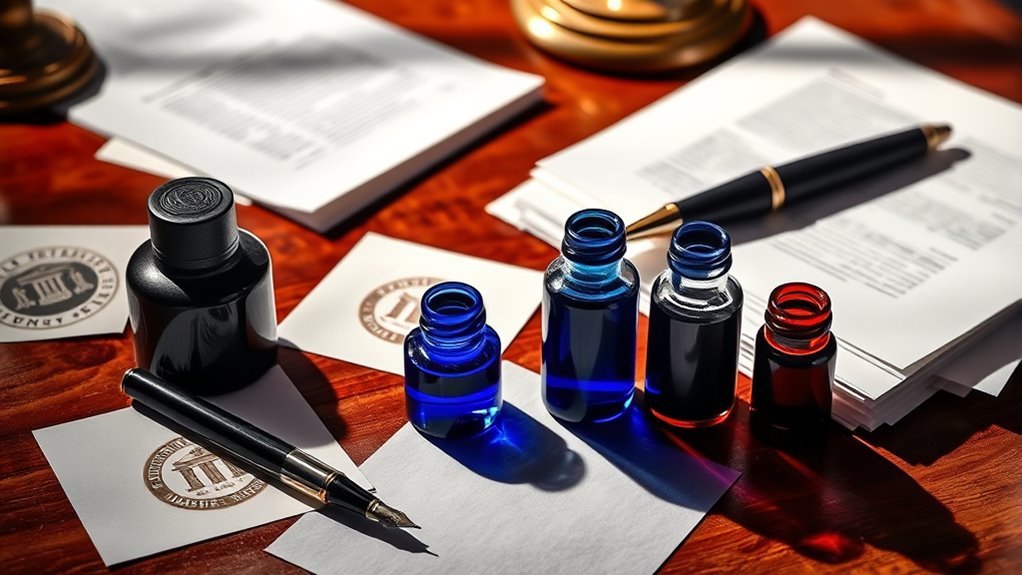
Why Pen and Marker Ink Is Generally Safe
You don’t really need to worry much about pen and marker ink since they’re made with low toxicity levels. Most inks have safe ingredients like water and dyes, which usually pose minimal health risks. So, if you accidentally get some on your skin or even swallow a tiny bit, it generally won’t cause any harm.
Low Toxicity Levels
Although ink might seem harmful at first glance, most pen and marker inks are actually formulated to be non-toxic and safe for skin contact or accidental ingestion. You don’t need to worry about serious poisoning from everyday use. Here’s why:
- Most inks are non-toxic, designed with safety in mind.
- Accidental ingestion of small amounts usually causes only minor symptoms.
- Skin contact with these inks rarely results in any harmful effects.
- Consumer safety guidelines classify pen inks as minimally toxic or non-poisonous.
Minimal Health Risks
Since pen and marker inks are made with non-toxic ingredients, they pose minimal health risks during everyday use. You can handle them or accidentally ingest small amounts without much worry because these inks typically contain water-based dyes or mild solvents designed to be safe.
If you swallow a bit of ink, you’ll likely experience only minor symptoms like temporary stomach upset or mild staining. Regulatory agencies classify most pen inks as non-poisonous, so casual exposure rarely leads to serious issues.
While mild poisoning is possible if large quantities are consumed, this is extremely uncommon due to the low toxicity of modern inks. Overall, pen and marker inks are formulated to keep you safe during normal use, making health risks minimal and manageable.
How Large Amounts of Ink Can Cause Serious Symptoms
When you ingest large amounts of ink, your body can react with serious symptoms beyond mild nausea or vomiting. Ink poisoning from significant ingestion can cause more than just discomfort. You might experience:
- Severe abdominal pain due to irritation or chemical burns in your gastrointestinal lining.
- Dizziness or confusion as toxins affect your nervous system.
- Persistent vomiting and diarrhea that lead to dehydration.
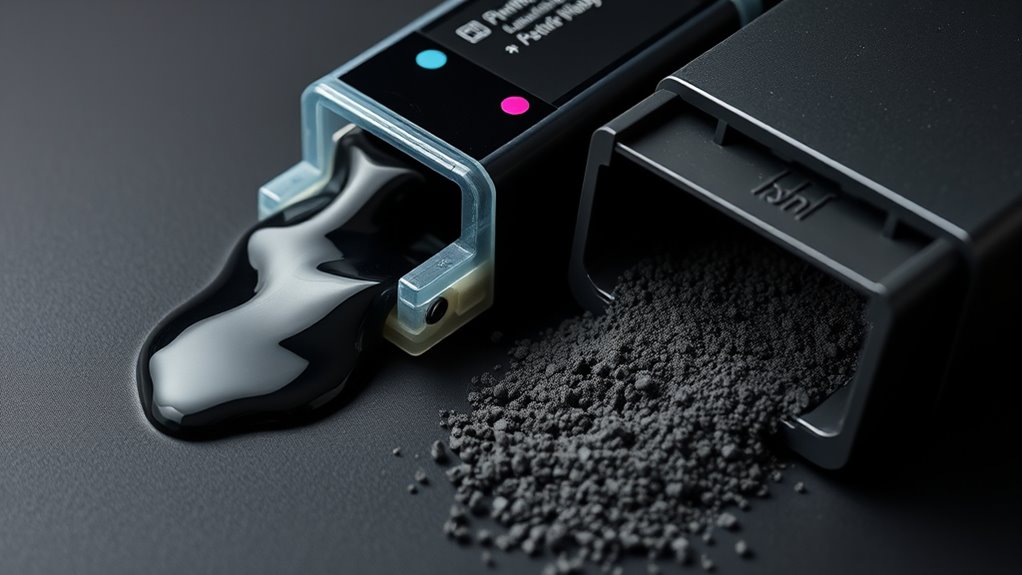
- Potential systemic toxicity, especially if the ink comes from printer cartridges or stamp pads containing harmful chemicals.
These serious symptoms signal that the ink has moved beyond your stomach and is affecting other organs. Because of the risks involved with ingesting large amounts of ink, it’s vital to seek immediate medical attention. Early intervention can prevent severe complications and help your body recover safely.
Special Risks of Tattoo Ink: Allergies and Infections
If you’re considering a tattoo, it’s important to understand that tattoo ink carries unique risks, especially related to allergies and infections. An allergic reaction to pigments like yellow, green, or blue can cause red, itchy, swollen skin.
Sometimes, your immune response might trigger hypersensitivity or allergic dermatitis months or years after the tattoo. Contaminated ink poses another risk, as bacteria or fungi can cause infections that may need antibiotics or medical treatment.
Since the FDA hasn’t approved pigments for skin injection, risks from unsterile contamination increase. To lower these risks, choosing inks from reputable sources and ensuring sterile equipment and hygiene are crucial.
| Risk Type | Cause | Symptoms |
|---|---|---|
| Allergic Reaction | Pigment sensitivity | Redness, itching, swelling |
| Infection | Contaminated ink | Pain, pus, fever |
| Delayed Reaction | Immune response | Dermatitis months/years later |
| Contamination | Unsterile equipment | Bacterial or fungal infection |
Immediate Steps to Take After Ink Exposure or Ingestion
Although ink exposure or ingestion can be alarming, you can take immediate actions to minimize harm and discomfort. Acting quickly helps reduce irritation and potential health risks. Here’s what you should do right after ink exposure or ingestion:
Immediate action after ink exposure reduces irritation and health risks, helping to minimize harm and discomfort.
- If ink gets into your eyes, perform a thorough eye rinse with cool, running water for at least 15 minutes to flush out contaminants.
- For ink on your skin, gently wash the affected area using soap and water. Avoid harsh scrubbing or chemicals that could worsen irritation.
- If you’ve ingested ink, don’t induce vomiting. Instead, drink a few sips of water to dilute it and ease any discomfort.
- Always seek medical attention if you experience persistent irritation, difficulty breathing, or if a large amount of ink was swallowed. Contact poison control or healthcare providers promptly for guidance.
Taking these steps can help you manage ink exposure safely and effectively.
When Should You See a Doctor for Ink Poisoning?
How do you know when ink exposure requires medical attention? You should see a doctor immediately if you suspect you’ve ingested a large amount of ink or if you experience symptoms like vomiting, abdominal pain, or difficulty breathing.
Persistent eye irritation, blurred vision, or discomfort that doesn’t improve after rinsing with water also means you need medical attention. If you notice symptoms such as nausea or dizziness after ink ingestion, or if you’re unsure about how much ink you swallowed, it’s best to consult a healthcare professional.
Ink poisoning symptoms that worsen or don’t improve within a few hours require prompt evaluation at a healthcare facility. Remember, exposure to printer cartridges, stamp pads, or industrial inks can be more dangerous, so contact a medical professional immediately in these cases.
Don’t delay. Early medical attention can prevent complications and ensure proper treatment for ink poisoning.
Frequently Asked Questions
Can Ink Poisoning Affect My Long-Term Health?
Ink poisoning rarely affects your long-term health if you experience minimal ink absorption from common pens or markers. Symptom severity usually stays low, so you won’t need aggressive treatment options.
However, with repeated exposure to hazardous inks, you might face skin sensitivities or respiratory issues. To protect yourself, focus on preventive measures like avoiding prolonged contact and using regulated inks.
If symptoms worsen, seek medical advice promptly.
Are Certain Ink Colors More Toxic Than Others?
No, certain ink colors aren’t inherently more toxic than others. Ink toxicity mainly depends on the chemical composition, not the color itself.
While some brightly pigmented inks might cause irritation or allergic reactions, their color safety doesn’t guarantee higher health risks. You should focus on the ink’s formulation and brand, as commercially available inks are usually tested for safety.
How Does Ink Poisoning Differ Between Adults and Children?
You’ll notice that ink absorption affects children and adults differently due to age sensitivity. Kids absorb ink more quickly, making symptoms more severe. They often experience nausea or irritability.
Adults, with larger bodies, usually show milder symptoms or none at all. Because of this, medical treatment is more urgent for children to prevent complications.
Can Ink Poisoning Cause Allergic Reactions Aside From Skin Irritation?
You might think ink allergy only causes skin irritation, but it can trigger a broader immune response. If you have skin sensitivity, you may also experience allergic symptoms like swelling, hives, or even respiratory issues such as coughing.
Your immune system can react beyond just the skin, especially if you’re sensitive or have pre-existing allergies. So, ink exposure can definitely cause more than simple skin irritation.
Is Ink Poisoning Contagious or Transferable to Others?
No, ink poisoning isn’t contagious or transferable to others. You won’t catch it through close contact or exposure because it involves chemical ingestion or skin contact, not an infection.
While ink transfer can happen on shared surfaces or hands, it doesn’t spread poisoning itself. Just wash your hands after handling ink to avoid accidental ingestion, but don’t worry about passing ink poisoning to someone else through casual interaction or touching.
Conclusion
So, if you ever think ink poisoning feels like a fun adventure, think again. It’s more like an uninvited guest crashing your body’s party. From itchy skin and stomach troubles to eye irritation, ink’s not the harmless splash of color you might hope for.
Sure, it’s just ink, but don’t let that fool you. When in doubt, clean up and call a doctor because your body definitely prefers a drama-free day.