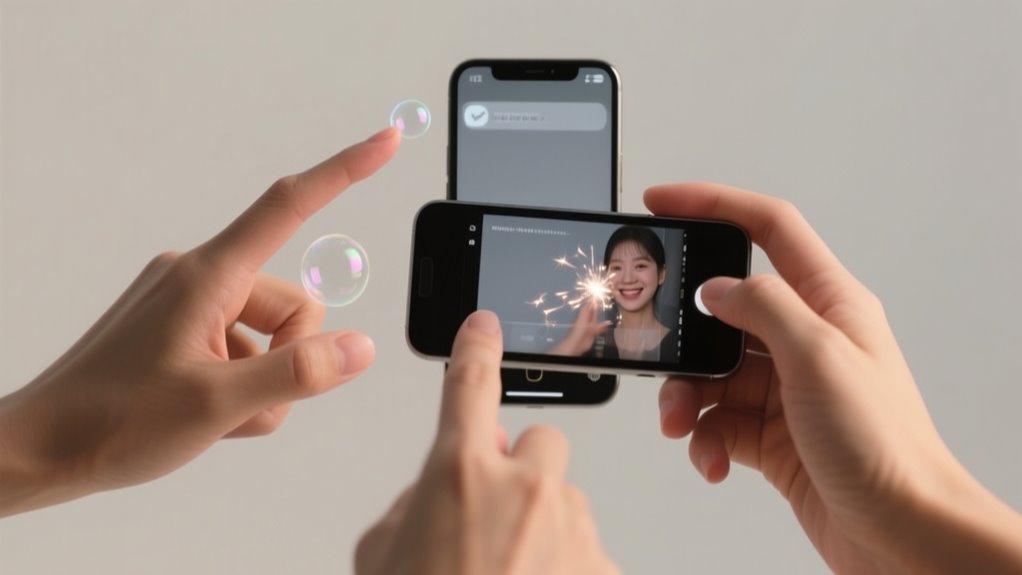
To send invisible ink text, first make sure iMessage is on and your iPhone runs iOS 10 or later. Open Messages and type your message or pick a photo.
Hold the send button until the effects menu appears, then select Invisible Ink. Preview it to see the blurred effect, and tap send when ready.
Your recipient will tap the message to reveal the hidden content. Keep exploring to understand troubleshooting tips and optimize your experience.
What Is Invisible Ink on iPhone and Who Can Use It
Invisible Ink on iPhone is a fun messaging effect in iMessage that keeps your text or images hidden behind a blur until the recipient taps or swipes to reveal them. When you compose a message, you can access the effects menu by pressing and holding the send button. From there, you select Invisible Ink to send your hidden messages.
This feature adds a playful surprise element, as your recipient must interact with the blurred content to see what you sent.
To use Invisible Ink, both you and the recipient need iPhones or iPads running iOS 10 or later with active iMessage accounts. It only works within the iMessage app, so messages sent to non-iOS users won’t have this effect.
Keep in mind, Invisible Ink is designed for fun, not for securely hiding sensitive information. It’s perfect when you want to add a little mystery or excitement to your messages without revealing everything upfront.
Prepare Your iPhone to Send Invisible Ink Messages
Before you can send invisible ink messages, make sure iMessage is turned on in your Settings under Messages. You’ll also want to update your iPhone to the latest iOS version so you can access all the messaging effects. Keeping both your device and iMessage up to date makes sure your invisible ink texts work smoothly.
Enable iMessage Settings
Although sending messages with special effects is fun, you’ll need to make sure your iMessage settings are properly configured first. To enable Invisible Ink, open your iPhone’s Settings and tap Messages. Verify iMessage is turned on, as this feature only works within the iMessage app.
Invisible Ink requires iOS 10 or later, so double-check your device meets this requirement before proceeding. Also, disable Reduce Motion in Accessibility settings to prevent interference with message effects like Invisible Ink.
Update iOS Version
Since sending messages with effects depends on your iOS version, you should keep your iPhone updated to the latest software. An iOS update ensures your device meets the system requirements for invisible ink and improves device compatibility.
To prepare your iPhone, follow these steps:
- Go to Settings > General > Software Update and check for the latest iOS version available for your device.
- Confirm your iPhone qualifies as a compatible device by running iOS 10 or later, as invisible ink requires this minimum.
- Install the update and restart your phone to enable all message effects smoothly.
Maintaining your iPhone updated guarantees you and your contacts can send and receive invisible ink messages without issues.
Compose Your Message or Select a Photo
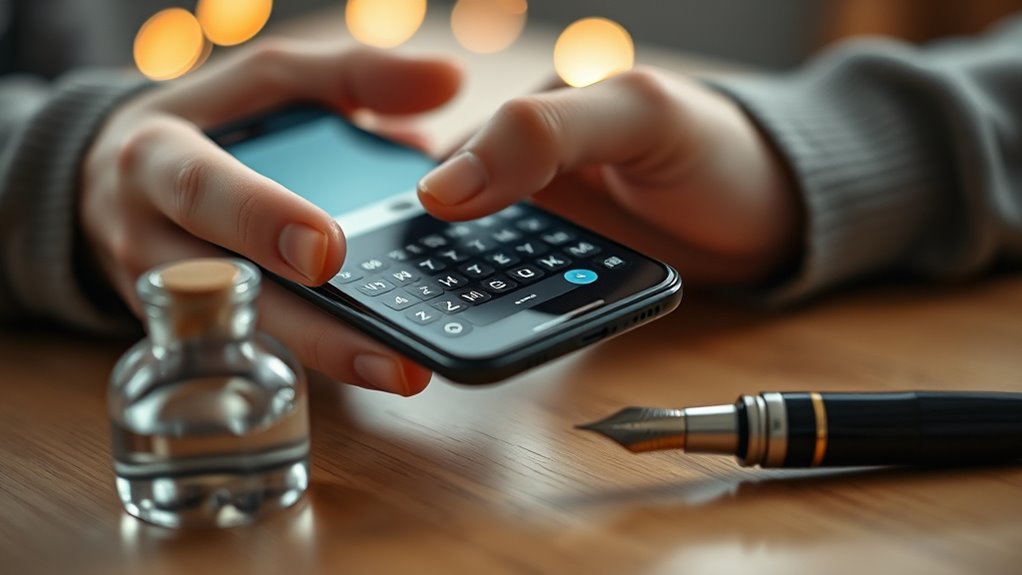
When you open the Messages app on your iPhone, you can either start a new conversation or pick an existing one to send your invisible ink text. Next, compose your message by typing the text you want to send or select a photo from your gallery.
Whether it’s a simple note or a special image, make sure your content is exactly how you want it before applying the invisible ink effect. This effect will blur or hide your message or photo until the recipient chooses to reveal it.
Before sending, you’ll have a chance to preview how the invisible ink looks, ensuring everything’s just right. Taking the time to compose your message or pick the perfect photo lets you send something personal and secretive.
Once your content is ready, you’ll be set to add the invisible ink effect and send your message in a fun, surprising way.
Open the Effects Menu by Holding the Send Button
To access the effects menu in iMessage, press and hold the send button, the upward arrow, right after typing your message. A long press on the send button reveals the message effects options, including Invisible Ink. You’ll need to hold the button for about a second until the effects menu appears on your screen.
Press and hold the send button after typing to reveal message effects like Invisible Ink in iMessage.
This feature works on devices that support 3D Touch or long press gestures.
Here’s how to open the effects menu:
- Type your message or select a photo in iMessage.
- Hold the send button firmly until the effects menu pops up.
- Browse the available message effects and preview them before sending.
Choose and Preview the Invisible Ink Effect
After opening the effects menu by holding the send button, you can select the Invisible Ink effect from the list of options. Once you choose Invisible Ink, a preview of the effect automatically appears, letting you see how your message will look before you send it.
You can also hold or tap the send button again to cycle through other effects, but previewing Invisible Ink ensures your message is just right. Remember, the preview is only visible to you, so your hidden message stays secret until the recipient swipes to reveal it.
Here’s a quick look at your options:
| Effect Name | How to Choose | Preview Available? |
|---|---|---|
| Invisible Ink | Hold send, select | Yes |
| Slam | Hold send, tap again | Yes |
| Loud | Hold send, tap again | Yes |
Taking a moment to preview helps you send your message with the perfect Invisible Ink effect every time.
Send the Message and How Recipients Reveal It
Although sending an invisible ink message starts by typing your text or selecting a photo, you finalize it by holding the send button and choosing the Invisible Ink effect from the menu. Once you send the message, it appears blurred to the recipient, so they’ll need to interact with it to reveal the content.
Send messages with Invisible Ink by holding the send button and selecting the effect to keep content hidden until revealed.
Here’s how your recipient can reveal the message:
- Tap or swipe over the blurred area with their finger.
- The Invisible Ink effect will fade, showing the hidden message or photo.
- After a short moment, the message will blur again to protect privacy.
Troubleshooting Common Invisible Ink Issues on iPhone
If your Invisible Ink messages aren’t showing effects properly, the first thing to do is check that both you and the person you’re messaging are using iOS 10 or later, and that iMessage is turned on. Also, take a look at your Accessibility settings—if Reduce Motion is on, it can stop those cool message animations from working.
If everything looks good there but you’re still having trouble, try restarting your iPhone. Sometimes a quick reboot can fix little glitches. And of course, make sure your iPhone is updated to the latest version of iOS, as updates often include fixes for issues like this.
Compatibility And Updates
When you don’t see Invisible Ink effects on your iPhone, it’s often because either your device or the recipient’s isn’t running iOS 10 or later, or iMessage isn’t enabled on one of the devices. To assure compatibility and enjoy all messaging features, follow these steps:
- Verify both devices are updated to the latest iOS version and have iMessage turned on in device settings.
- Disable Reduce Motion in Accessibility settings to enhance invisible ink visibility.
- Restart your iPhone or reset network settings to fix any temporary glitches impacting invisible ink effects.
Keeping your iPhone updated and iMessage enabled guarantees smooth use of invisible ink and other messaging features, avoiding compatibility issues with older software versions or disabled settings.
Effect Visibility Problems
Why might your invisible ink messages fail to appear as intended? Effect visibility problems often arise when either you or the recipient’s device isn’t updated to iOS 10 or later, which is essential for the feature to work properly.
Also, if the recipient has Reduce Motion enabled in Accessibility settings, the invisible ink effect may not display correctly. Make sure both sender and receiver have iMessage activated and compatible devices to avoid issues.
Another common mistake is not previewing the effect before sending, which can cause the message to fail to reveal. In conclusion, environmental factors like bright sunlight can make it harder to see the invisible ink.
Checking these points will help you troubleshoot and ensure your hidden messages reveal as expected.
Frequently Asked Questions
Can Invisible Ink Messages Be Saved or Forwarded on iPhone?
Yes, you can save or forward invisible ink messages on your iPhone. Keep in mind, invisible ink doesn’t offer true message encryption or expiration, so privacy concerns remain.
You can screenshot the blurred text before revealing it or forward the message, but the recipient sees it blurred until they tap it. Invisible ink lacks digital watermarking, and its secret communication depends on app compatibility, as it mainly works within iMessage.
Is Invisible Ink Text Secure From Hacking or Interception?
You shouldn’t trust invisible ink text alone for security. It’s like sending a secret telegram without a code. Despite iMessage’s encryption methods, invisible ink messages have hacking vulnerabilities and don’t add real message authentication.
They’re still vulnerable to signal interception, exposing cybersecurity risks and privacy implications. To protect sensitive info, you need messaging apps with strong encryption standards that truly secure your conversations beyond just visual effects.
Does Using Invisible Ink Affect Message Delivery Speed?
You won’t notice any message delay when using invisible ink because the ink drying time is just a visual effect on your screen, not an actual delay in transmission.
Transmission latency depends more on your network and possible signal interference than on the invisible ink itself. Encryption impact and message processing remain the same, so delivery confirmation happens just as quickly.
Invisible ink doesn’t slow down your messages in any meaningful way.
Can Invisible Ink Be Used in Group Chats on iPhone?
Using invisible ink in a group chat on iPhone is like whispering a secret in a crowded room. It’s visible but needs a special touch to reveal. While it offers discreet communication methods and hidden message features, it doesn’t guarantee group chat privacy since all members can uncover the secret message.
For covert message delivery, remember that chat encryption options don’t extend to invisible ink. So use these iPhone messaging tips wisely when sharing sensitive info.
Are There Any Apps to Create Invisible Ink Messages Outside iMessage?
Yes, you can find apps that use invisible ink techniques and message encryption methods outside iMessage. These apps offer message customization and privacy settings to enhance communication privacy.
While they don’t replicate iMessage features perfectly, they provide unique ways to secure your texts. To boost digital security, explore apps with strong encryption and customizable effects.
Always check privacy settings to protect your messages and keep your conversations secure.
Conclusion
Invisible ink messages add a fun, mysterious twist to your texts, like sending a secret note only meant for the eyes that choose to reveal it. Now that you know how to send invisible ink in just seven easy steps, you can surprise friends and keep conversations playful.
So, why stick to plain texts when you can spark curiosity and excitement with every message? Go ahead, make your words vanish and watch the magic happen!
Leave a Reply